Prime Gallery: Layouts, Covers and Branding for Photographers
Prime Gallery: Presenting Your Photos the Way They Deserve
Prime Gallery: Layouts, Covers and Branding for Photographers
Prime Gallery: Presenting Your Photos the Way They Deserve
Introduction
Prime Gallery
You have spent days shooting, culling and editing. The colors are right, the moments are there and the story is complete. Then the client opens the link on their phone and sees a cropped cover, an endless grid of same sized thumbnails and no sign of who made the work.
The photographs have not changed, but the experience has. Clients form their first impression of a gallery before they look closely at a single image. The first screen they see is a cover, a name and a grid, and that screen shapes how they feel about everything that follows.
Presentation is also the part of delivery that keeps working after you send the link. A well-presented gallery gets shared with family and friends, revisited on anniversaries and seen by guests who may need a photographer of their own.
This guide covers the three elements that make a gallery look professional: the cover image, the layout and your branding. For each one, you will find practical guidance and the Prime Gallery settings that control it.
Quick summary
- Choose a cover image with clear faces and a centered subject, then check it on a phone and a desktop before sharing.
- Give each event or section its own cover so a multi event wedding is easy to navigate.
- Use photo size and position to create emphasis: larger tiles for key moments, smaller tiles for sequences and details.
- Open the gallery with a short Highlights set, then follow the order of the day.
- Keep branding small and consistent: a logo, a short studio description and contact details.
- Watermark proofs and public previews, and agree with the client whether final files carry a watermark
- Set access and download permissions before sending the link, then test the gallery as your client would.
What makes a client gallery look professional?
A professional gallery feels deliberate. The client can see where to start, how the story is arranged and who made it, without any instructions from you.
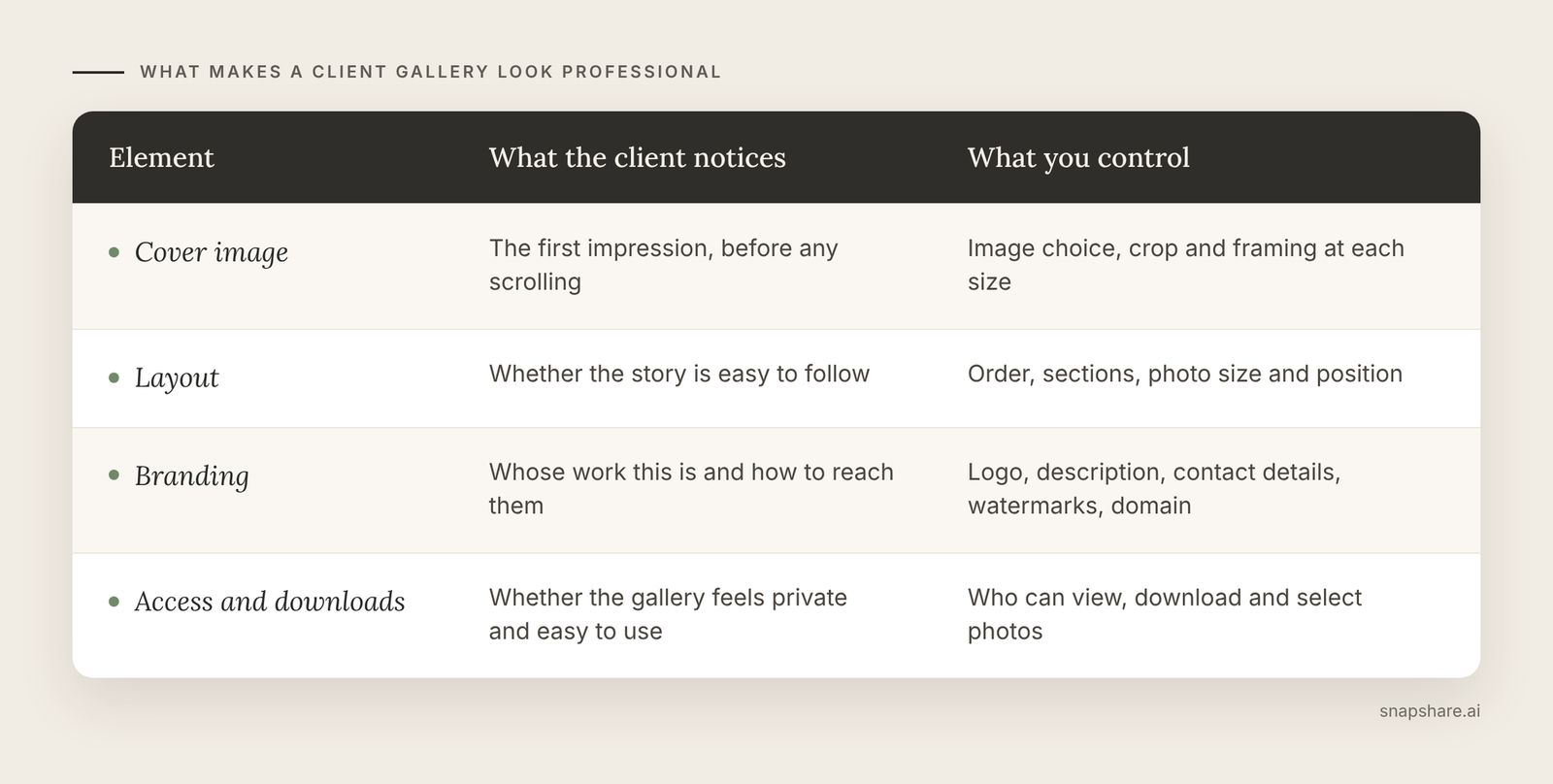
All four elements matter, but the cover and layout do most of the work. Branding should support the photographs, not compete with them.
1. Choose a cover image that works at every size
The cover is the first image a client sees, and it often appears small before it appears large. Choose a frame that represents the whole shoot and still reads clearly as a thumbnail.
What makes a strong cover
- Clear faces.For weddings and portraits, the people should be recognizable at a glance. A detail shot of rings or decor rarely works as the lead image.
- A centred subject. Covers are often cropped differently on phones and desktops. A subject near the centre survives most crops.
- Simple background.Busy scenes turn into noise at thumbnail size.
- The right mood. A candid laugh or a quiet portrait sets the tone better than a technically perfect but neutral frame.
Give each section its own cover
Prime Gallery supports folder wise cover images. Each folder can open with its own image, so a multi event wedding can show a different cover for the Mehendi, Sangeet, ceremony and reception. Clients can then recognize each event before they open it.
In Snapshare's current gallery layout, a preview sits at the top of the gallery and event covers are displayed as uniform squares. Square covers keep the grid consistent across devices, which is another reason to frame the subject near the Centre.
Check the cover before sharing
- Open the gallery on a phone and on a desktop.
- Confirm faces are not cut off in either view.
2. Build a layout that tells the story
A good layout lets the client follow the shoot from beginning to end without searching. Start with a short Highlights set, then arrange the remaining photographs in sections that follow the order of the day. Our guide to organising wedding photos into a client gallery covers sectioning in detail.
Use size and position for emphasis
Prime Gallery lets you tailor the layout by adjusting photo positioning, sizing and sequencing, with a custom grid. Use those controls to guide attention:
- Make key moments larger. A first look, a vow or a keynote moment deserves a bigger tile than the frames around it.
- Group sequences. Place a moment, its detail and the reaction beside each other so the story reads as one scene.
- Vary the rhythm. Mix wide scenes, close-ups and portraits so the grid does not feel repetitive.
- Respect orientation. Check that portrait and landscape frames sit together without awkward crops.
Use Highlights as a preview
Prime Gallery's Highlights can be made public and shared through a link. That makes them useful as a short preview before the full gallery is ready, or as a shareable set the couple can send to family.
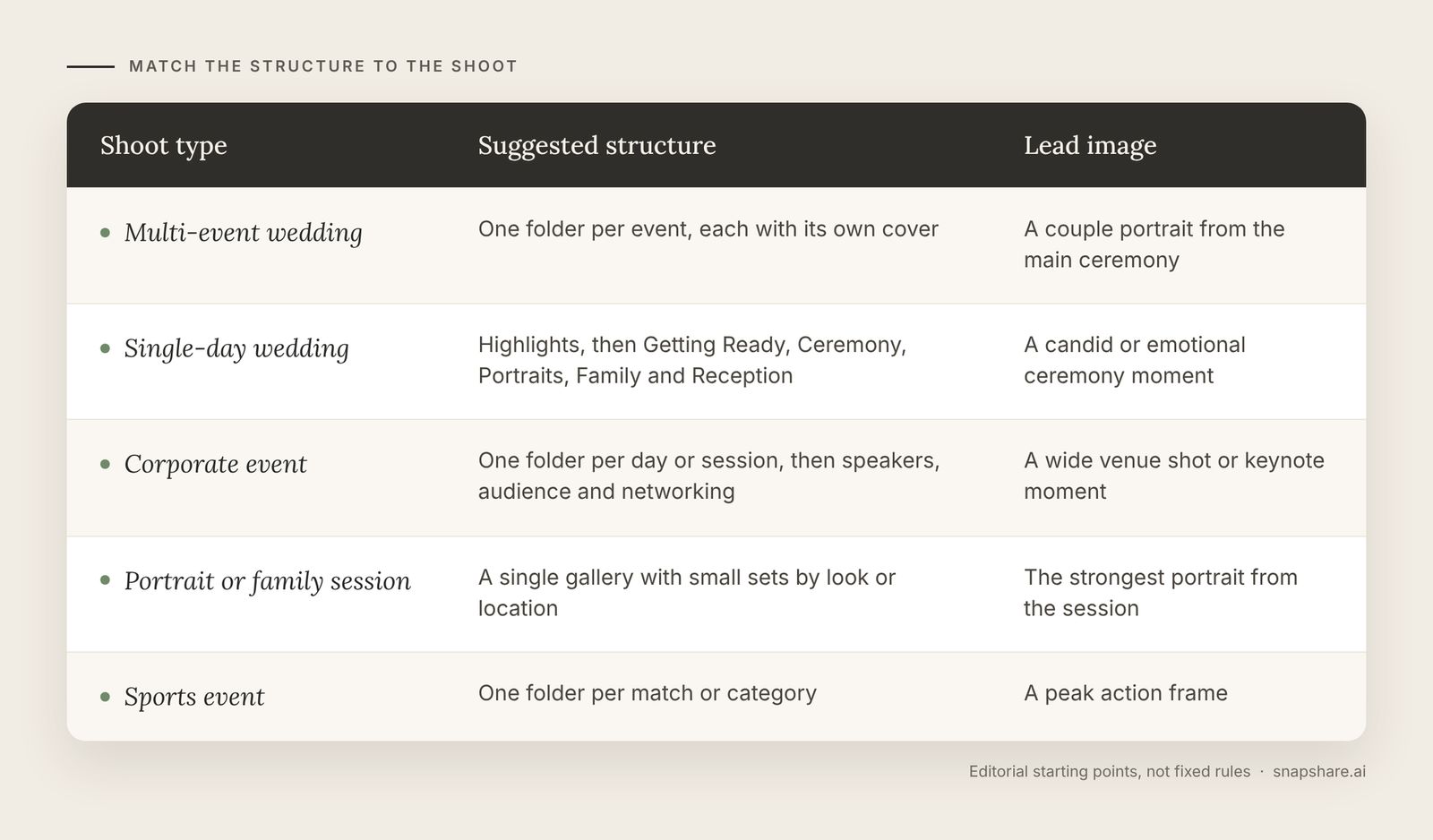
Match the structure to the shoot
The structures below are editorial starting points, not fixed rules. Adjust them to the event and the client's plans.
3. Add branding without overpowering the photographs
Branding should tell the client who made the work and how to reach you. It should never be the first thing they notice.
Set up a brand profile
In Prime Gallery, a brand profile holds your logo, cover image, studio description and contact details. Set it up once and it carries across your galleries.
Studios that run more than one label can use several brand profiles. As of October 2026, Snapshare's pricing lists one brand profile on the Basic, Spark and Ignite plans, two on Elevate and three on Ascend. That suits a studio that keeps separate identities for wedding and corporate work.
Use watermarks with a purpose
Prime Gallery supports customizable watermarks. They are most useful where images may travel without your permission:
- Proofing galleries, where the client is choosing images before final delivery.
- Public Highlights and previews shared beyond the client.
- Portfolio galleries used to attract new enquiries.
For final delivered files, agree on watermarking in advance. Clients who plan to print or make albums will need clean files. Where you do watermark, keep it small, place it near an edge and lower its opacity.
Consider your own domain
A gallery link that carries your studio's name looks more professional than a generic one. Snapshare's pricing lists a custom subdomain, and full domain white label on the Ascend plan. Check the current plan table for the terms.
Turn viewers into enquiries
Every shared gallery is seen by guests and family who may need a photographer later. Prime Gallery includes a lead enquiry form, so interested viewers can contact you from the gallery. It creates an opportunity for enquiries, but it does not guarantee bookings.
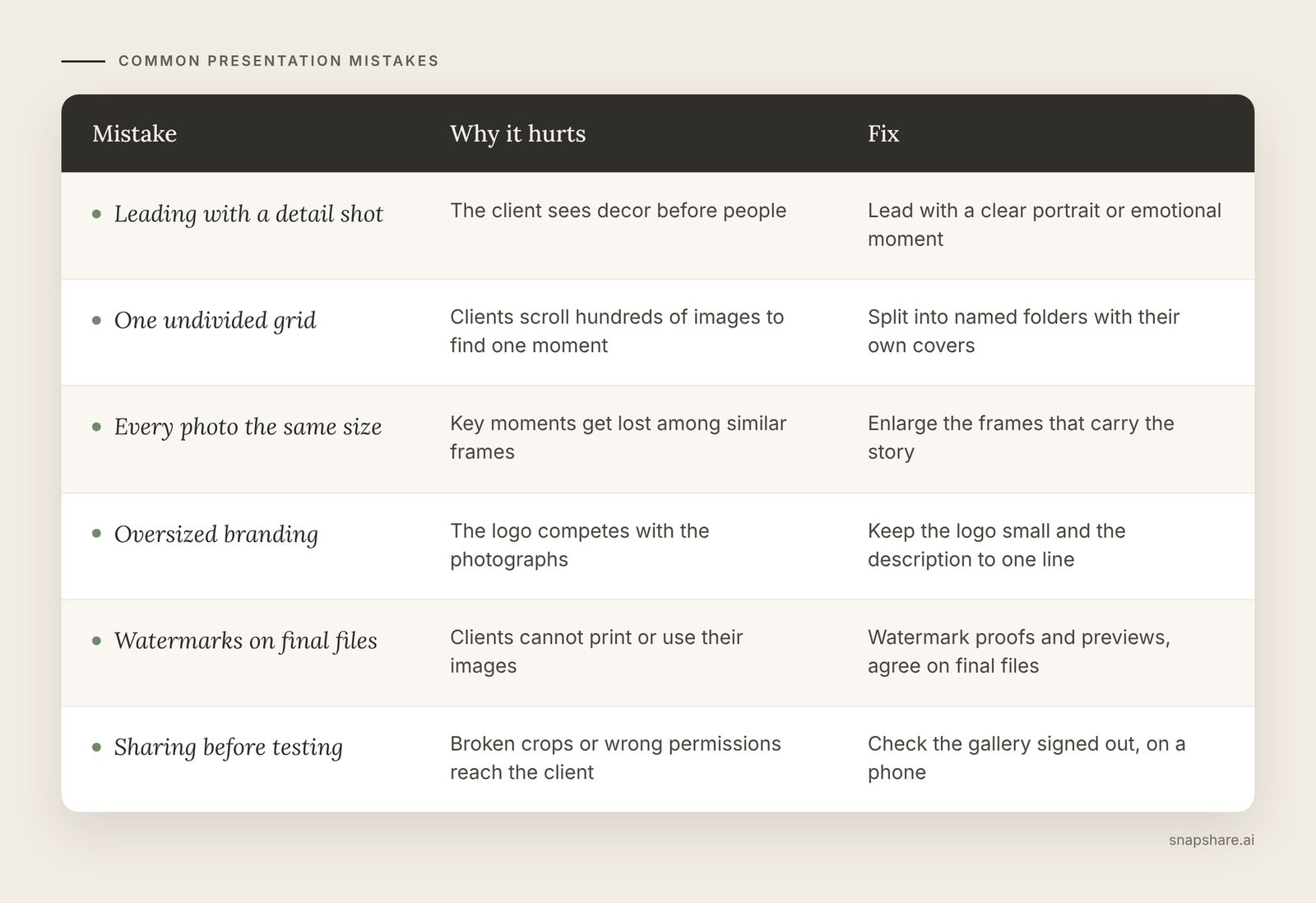
Branding mistakes to avoid
- A logo so large it competes with the cover image.
- A long studio description where one line would do.
- Different logos or names across galleries, which looks inconsistent.
- Heavy watermarks on files the client have paid to print.
4. Make access and downloads part of the presentation
A gallery that is hard to open, or downloads the wrong files, undoes good design. Set permissions before you send the link.
- Access. Prime Gallery galleries can be shared with specific clients, protected with a PIN or opened without one. Use a PIN when the gallery holds family or private moments.
- Downloads. Download access control works for individual photos and the full gallery. Downloads can be PIN-protected or hidden entirely, for example while the client is still choosing images.
- Quality. Prime Gallery supports full-size uploads and full-size downloads, so the files the client saves match what you exported.
- Selections. Clients can mark photos as Favorite or Maybe. You can set a due date and a required selection count, then export the chosen filenames as a CSV or a Lightroom text file.
- Video. Galleries can embed video links, and plans include video storage from 1 GB on Basic to 100 GB on Ascend.
Plan limits change over time, so confirm each setting on the [current pricing page] (https://snapshare.ai/pricing) before you promise it to a client.
5. Test the gallery as your client will see it
Your dashboard is not what the client sees. Before sending the link, open it in a signed-out browser on a phone and check the full experience.
- The cover loads quickly and its crop looks intentional.
- Folder covers and names make each section easy to identify.
- Large and small tiles create emphasis without awkward crops.
- Your logo and contact details are visible but not dominant.
- Watermarks appear only where you intended.
- The PIN or access setting works as expected.
- Download permissions match what you agreed with the client.
- Favorite and Maybe controls are easy to find on a small screen.
- A downloaded test image opens at full size.
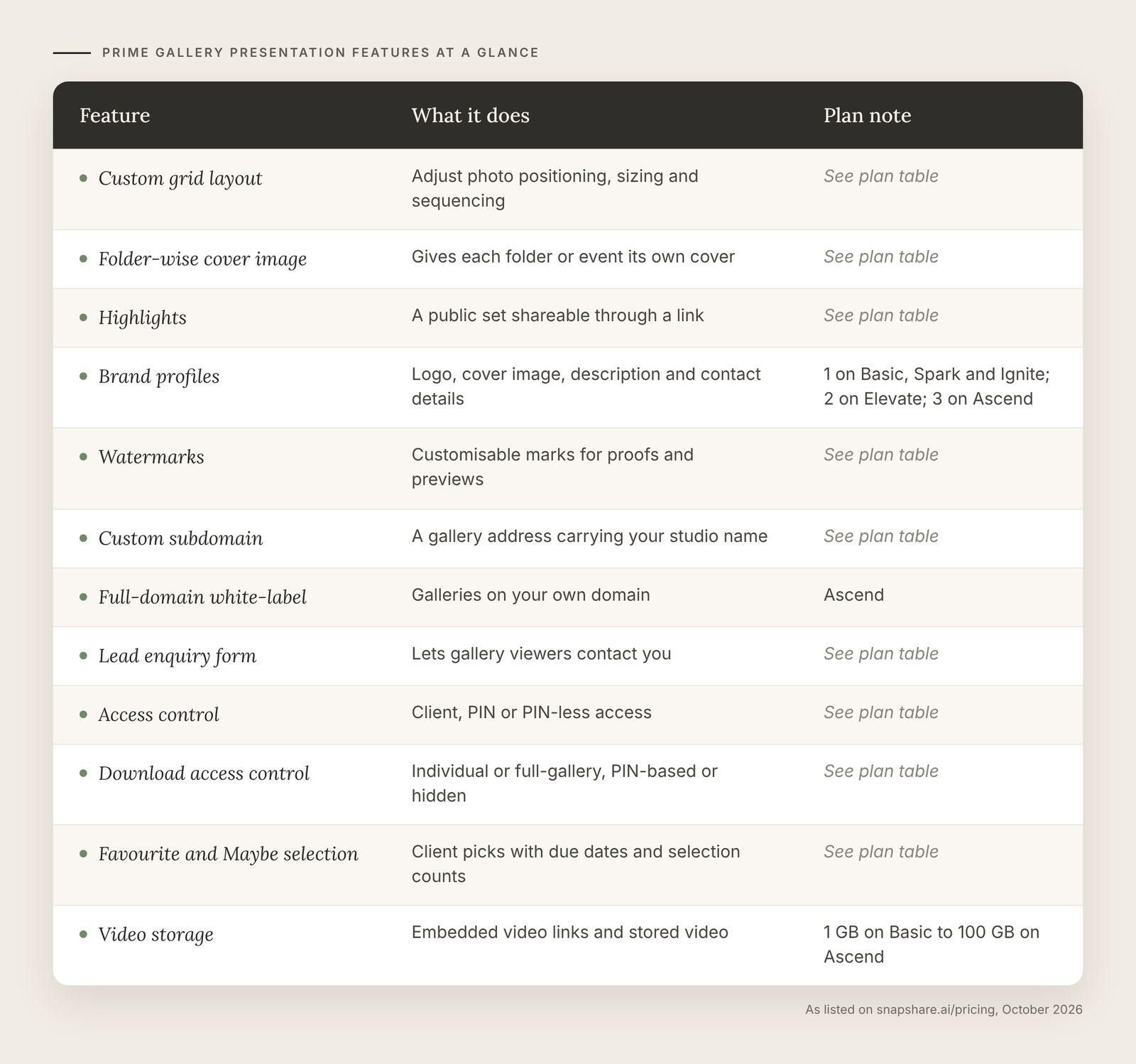
Prime Gallery presentation features at a glance
The table summarizes the presentation features covered in this guide, as listed on Snapshare's pricing page and Prime Gallery page in October 2026.
Common presentation mistakes
Frequently asked questions
What is Snapshare Prime Gallery?
Prime Gallery is Snapshare's client gallery for photographers. It lets you present, share and deliver finished photographs through a branded link, with controls for layout, covers, branding, access, downloads and client selections.
Can I customize the layout of a Prime Gallery?
Yes. You can adjust photo positioning, sizing and sequencing within a custom grid. Use larger tiles for key moments and group related frames together.
Can each event in a wedding gallery have its own cover?
Yes. Prime Gallery supports folder-wise cover images, so each event folder, such as Mehendi, Sangeet or the reception, can open with its own cover.
Should I watermark delivered wedding photos?
Watermark proofing galleries and public previews. For final delivered files, agree with the client in advance, because watermarks prevent clean prints and albums.
Can I use my own domain for client galleries?
Snapshare's pricing lists a custom subdomain, and full domain white label on the Ascend plan. Check the current plan table for terms.
Can I run more than one studio brand?
Yes. As of October 2026, Elevate includes two brand profiles and Ascend includes three. Each profile has its own logo, cover image, description and contact details.
Is there a free plan?
Snapshare offers a free Basic plan that includes three galleries, with unlimited galleries on paid plans. See the pricing page for current limits.
Present your next gallery with Prime Gallery
A strong cover, a layout that follows the story and quiet, consistent branding make a gallery feel finished. Set them up once in a brand profile and a layout you trust, then test every gallery as your client will see it.
Start free with Snapshare: set up your brand profile, build a sample gallery and check it on your phone before your next delivery. Or explore Prime Gallery first.
Publish on:
Written By

Najiha Thasni
.
Subscribe to our newsletter
Publish on:
Written By
Najiha Thasni
.