How to Organize Wedding Photos Into a Client Gallery
A thoughtful workflow for galleries that are easy to explore, share and enjoy.
How to Organize Wedding Photos Into a Client Gallery
A thoughtful workflow for galleries that are easy to explore, share and enjoy.
Introduction
To organize wedding photos for client delivery, start with a short highlights collection, then arrange the remaining images into clearly named sections in the order of the day. Remove repetitive frames, separate events when needed, and test the gallery’s mobile viewing, privacy, downloads and album-selection process before sharing it.
You have finished the edits. Now imagine the couple opening 800 photos and trying to find one moment: their entrance, a parent’s reaction or a favourite group portrait. Clear sections give them a place to start.
This guide walks through a wedding photo delivery workflow you can adapt to an intimate ceremony or a multi-day celebration.
Quick summary
- Open your wedding client gallery with a short highlights collection that introduces the people and moments that matter.
- Arrange the full collection chronologically within clearly named sections.
- Review near-duplicates before uploading, while preserving meaningful changes in expression and action.
- Organize multi-event weddings by event, using separate galleries when audiences or access settings differ.
- Give couples one clear process for album selections, including a deadline and confirmation step.
- Test the gallery as a client on a phone before sending the delivery link.
1. Open with a wedding highlights collection
Use Highlights as a short introduction to the complete wedding story. Choose images that represent the couple, important relationships and the atmosphere of the celebration.
For a starting layout, try 20 images: four couple portraits, six ceremony moments, four family or guest reactions, four celebration photographs and two details. This is a suggested editorial exercise, not a researched industry standard or a required photo count. Adjust it to the wedding.
Keep each highlight in its relevant full-gallery section too, if your platform supports collections without unnecessary duplicate uploads. That lets the couple enjoy the opening sequence without losing the chronological story.
Choose a cover that remains readable at a small size. If your gallery offers a cover-crop setting, check it on a phone and a desktop so the couple’s faces remain visible. Snapshare’s updated gallery layout features a Preview on top and uniform square event covers (confirmed by the Snapshare Product Team, October 2026), keeping cover framing consistent across devices.
2. Arrange the gallery into clear chapters
Keep photographs in chronological order within each event, then use familiar section names to help people navigate. A useful starting structure is:
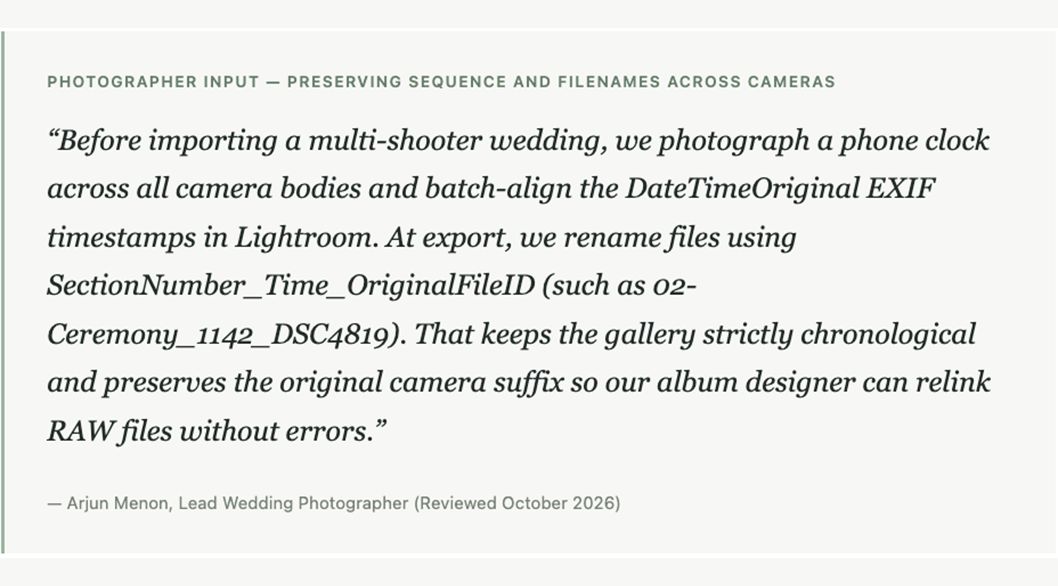
Use the couple’s names for their events and traditions. If their schedule includes a Baraat, Nikah, Anand Karaj or another ceremony, label it accurately rather than forcing every wedding into the same template.
Before sorting a multi-camera shoot, check that capture times align. Otherwise, a second photographer’s images may interrupt the sequence. Keep stable, unique filenames through editing, upload and client selection so a selected image remains easy to identify.
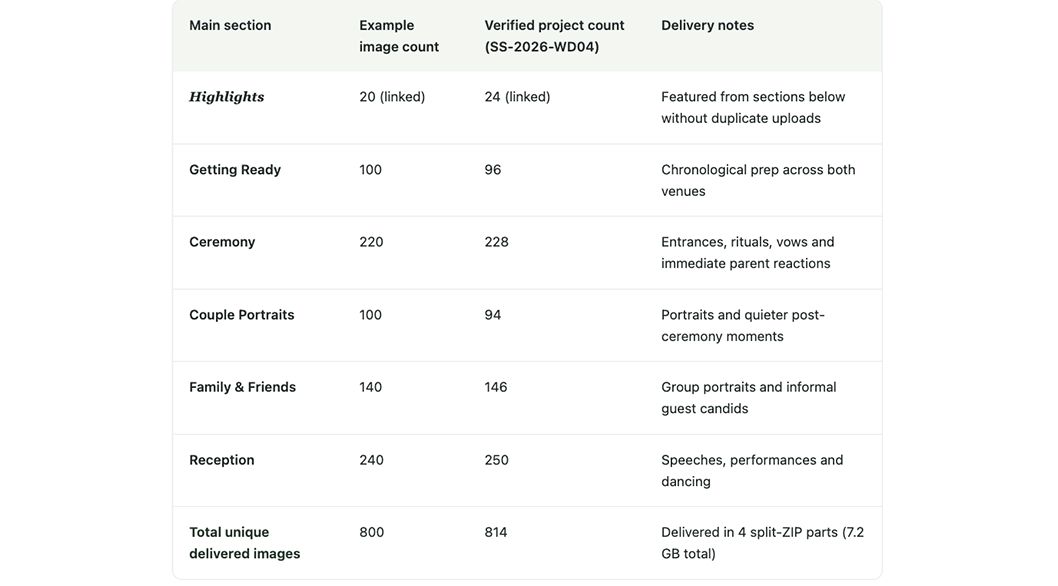
Keep reactions beside the moments that caused them. A parent’s response to an entrance belongs near that entrance. A dedicated Family & Friends section is useful for browsing, but moving every reaction there can break the story. Avoid moving an unrelated reaction next to a ritual if it suggests something that did not happen.
Verified Project Example: Organizing an 814-Photo Wedding Gallery
The table below pairs the 800-image planning template with an anonymised, verified two-camera wedding project delivered on Snapshare (Project Ref: SS-2026-WD04):
An opening Highlights collection can feature 20 images already included in these sections. Those highlights do not increase the unique image count to 820.
Use the distribution to plan navigation, not to fill quotas. The wedding’s coverage and the couple’s agreement should determine what you deliver.
3. Remove repetitive frames before uploading
Compare similar photographs in small groups. Keep the frames that add a distinct expression, action, relationship or viewpoint.
For a ring exchange, a wide photograph can establish the scene, a close-up can show the rings, and a reaction can complete the moment. Treat this “scene, detail, reaction” sequence as a storytelling prompt, not a three-photo limit.
A practical culling process is:
- Review each event separately so you can follow its story.
- Compare bursts for focus, expression and meaningful differences.
- Mark your preferred images and flag technical problems for review.
- Check that important people and moments remain represented.
- Review the rejected group before exporting your final selection.
For manual culling, Lightroom Classic supports Pick and Reject flags, star ratings and filtering. Adobe’s official Lightroom Classic guide to flagging and rating photographs explains those controls.
For assisted review, Snapshare’s AI Photo Culling identifies similar or duplicate photos, blur and closed eyes. Use those detections to guide your review; a closed-eye laugh or intentional motion blur may still be worth keeping. Final selection remains a creative decision. When sorting across multiple events in Snapshare, saved scroll memory and filter persistence (confirmed by the Snapshare Product Team, October 2026) return you to the exact scroll spot and active filters on your event list.
4. Give multi-day weddings an event-based structure
For weddings with several events, organize by event first and by moment second. Use only the events relevant to that celebration for example, Mehendi, Haldi, Sangeet, the wedding ceremony and reception.
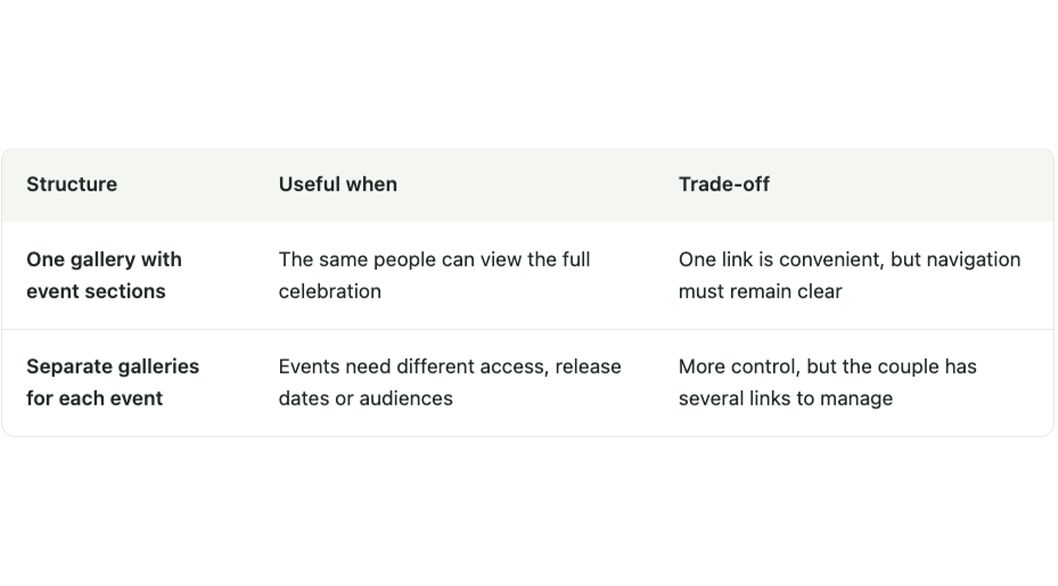
Choose the structure according to how the couple will browse and share:
For one gallery, try labels such as Day 1 : Mehendi and Day 2 : Sangeet. Within a longer wedding-day section, add ceremony stages if your platform supports another level of navigation.
For separate galleries, send a single delivery message listing each event and its link. State whether all collections are complete or whether another event will follow. During pre-shoot coordination, Snapshare’s updated shoot workflow (confirmed by the Snapshare Product Team, October 2026) allows studios to map multiple locations in one shoot, assign crew per venue, sync local time zones, and share exact venue pins on WhatsApp in one tap.
5. Make family photos easy to find and sharing deliberate
Keep family group portraits together and label the section plainly. Give guest candids a recognisable home while preserving reactions that belong in the ceremony sequence.
Face search can provide another way to locate photographs. Snapshare’s event photo delivery tools offer selfie-based photo discovery. Treat matches as a browsing aid: do not promise that every photograph will be found or that matching is always correct.
Before sharing the gallery, agree with the couple on three things:
- Audience: Which photographs are for the couple, and which may be shared with family or guests?
- Access: Should a gallery require a password, and who will receive it?
- Downloads: Which viewers should be able to download files, and at what quality?
Snapshare’s Prime Gallery page describes password protection. Check the settings available in your account and test them as a guest before delivery. If an older event link is later taken down, Snapshare displays a polite status page explaining that the link has expired instead of a raw error screen (confirmed by the Snapshare Product Team, October 2026).
A shareable link can be forwarded. Face search and watermarks do not replace access controls. Explain any selfie-search option before inviting guests to use it, and offer ordinary browsing where available.
6. Test mobile viewing and download quality
Assume the delivery link may be opened on a phone. Test the actual client experience rather than relying on the photographer’s dashboard.
Open the link in a signed-out browser and check that:
- The opening images load and the cover crop looks intentional.
- Section names are readable and easy to tap.
- Portrait and landscape photographs display without unwanted cropping.
- Access restrictions work as intended.
- Selection controls are understandable on a small screen.
- A downloaded test image opens and has the expected dimensions.
Because large single ZIP downloads frequently fail on mobile connections, Snapshare automatically splits large gallery downloads into smaller parts with clear download buttons (confirmed by the Snapshare Product Team, October 2026). Distinguish between files intended for social sharing and files intended for printing. If you provide both, label them clearly. For print files, check the lab’s requirements for the intended print size; a “high resolution” label alone does not establish suitability.
Keep a separate backup of the delivered files. Tell the couple how long you have agreed to keep their gallery available and ask them to save their own copy.
7. Give couples a clear album-selection workflow
Separate final photo delivery from wedding album photo selection. The couple should know whether they are reviewing proofs for editing, receiving finished photographs, or choosing images for an album.
Snapshare describes in-gallery favourites and photo selection on its client gallery website. Build a simple process around the selection tools available in your account:
- Define the task. State what the selection is for, the agreed image count and the deadline.
- Explain the controls. Give instructions using the labels shown in the client interface.
- Choose one final list. If both partners contribute, explain how their choices will be combined and approved.
- Confirm completion. Use the platform’s submission option if available; otherwise ask the couple to tell you when the list is final.
- Reconcile the files. Export a filename list if supported, or record the selected filenames and match them to your editing catalogue. Check the count and any missing files.
- Confirm the next step. Acknowledge the approved selection and give the agreed date for the album proof or retouched files.
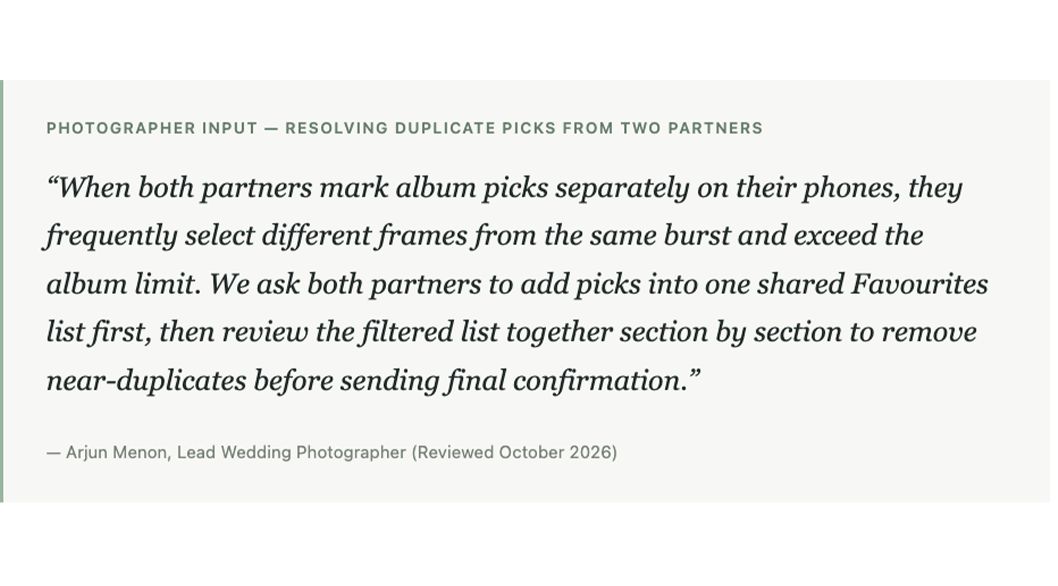
Do not assume a CSV export, automatic catalogue sync or selection-lock feature exists without checking your chosen platform. Keeping the instructions clear still gives the couple a dependable alternative to sending scattered screenshots.
How many wedding photos should you deliver and when?
Use your client agreement, coverage and final edit to determine the delivery count. An intimate ceremony and a multi-day wedding should not be forced into the same number. The 800-image example above explains organization; it is not a minimum or a benchmark.
Set separate expectations for any preview, the full gallery and the album proof. Give a specific agreed delivery date, then communicate early if it changes. Avoid promising a universal turnaround that your editing schedule cannot support.
Choosing a wedding client gallery platform
Test a small sample gallery against the tasks your clients actually need to complete. Check section navigation, mobile viewing, favourites, file identification, privacy controls, download quality, storage and ongoing access costs.
Snapshare provides client photo galleries and studio tools for photographers. Its Prime Gallery offering describes adjustable image positioning and sequencing, while its wider tools cover culling, photo selection and event photo discovery. Check Snapshare’s current plans against your storage and feature needs before committing a complete wedding.
The most useful test is concrete: can a client find one family portrait, select it for an album and download the intended file without help?
Frequently asked questions
Should wedding photos be in chronological order?
Yes, within each event or section. Start with Highlights if you want a short overview, then let the complete collection follow the day. Keep related actions and reactions together.
How many photographs should go in Highlights?
Choose enough to introduce the celebration without repeating the full gallery. The 20-image exercise in this guide is a starting suggestion, not an industry rule. Adjust it to the number of events and the story you want to tell.
Should I use one gallery or separate galleries for each event?
Use one gallery when the audience and access settings are the same. Separate galleries are useful when events need different permissions, delivery dates or sharing groups.
How can couples select album photos without WhatsApp screenshots?
Give them an in-gallery selection process with an agreed count and deadline. Confirm when their list is final, reconcile selections against filenames, and acknowledge the approved list before designing the album.
Wedding gallery delivery checklist
Before you send the link, confirm:
- Highlights introduce the celebration without unnecessary repetition.
- Event names, capture order and filenames are consistent.
- The delivered selection matches the agreed coverage.
- The couple has approved the audience and sharing arrangements.
- A signed-out phone can open the gallery with the intended permissions.
- A sample download opens at the intended quality.
- Album-selection instructions include a deadline and a way to confirm completion.
- The delivery message states the agreed gallery access period and backup instructions.
Build a gallery that is easy to enjoy
Start with the strongest moments, give the full story clear sections, and explain exactly what happens after delivery. Before sending the link, complete the same viewing, selection and download steps your couple will take.
Ready to try the workflow? Start for free with snapshare, upload a small sample and test the client experience before delivering your next wedding.
Publish on:
Written By

Paul James
Digital Marketer
Subscribe to our newsletter
Publish on:
Written By
Paul James
Digital Marketer